
As most of you know SAP bought the company responsible for the tool Crystal Reports in 2007. You can see the article here .
This tool was then integrated to SAP Business One which made our lives easier when it comes to creating beautiful reports.
In this post I will just share an easy way to create a simple report using this powerful application.
So, let’s say the sales director of the company wants to have an Aging Report by sales employee. He wants this report so his sales employees can follow up with their customers and make easier for accounting to collect the money.
The SAP standard aging report would show him the data like this:
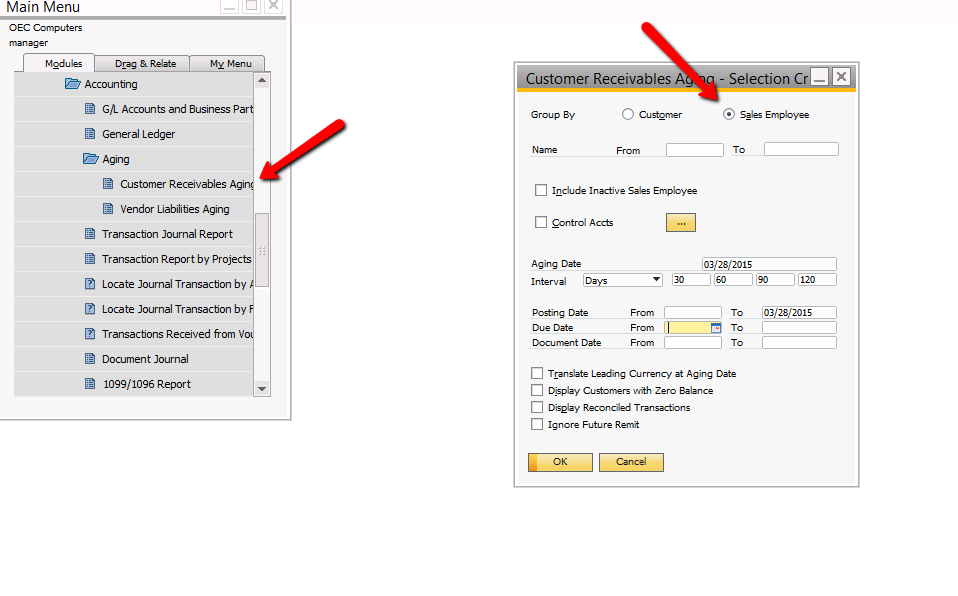
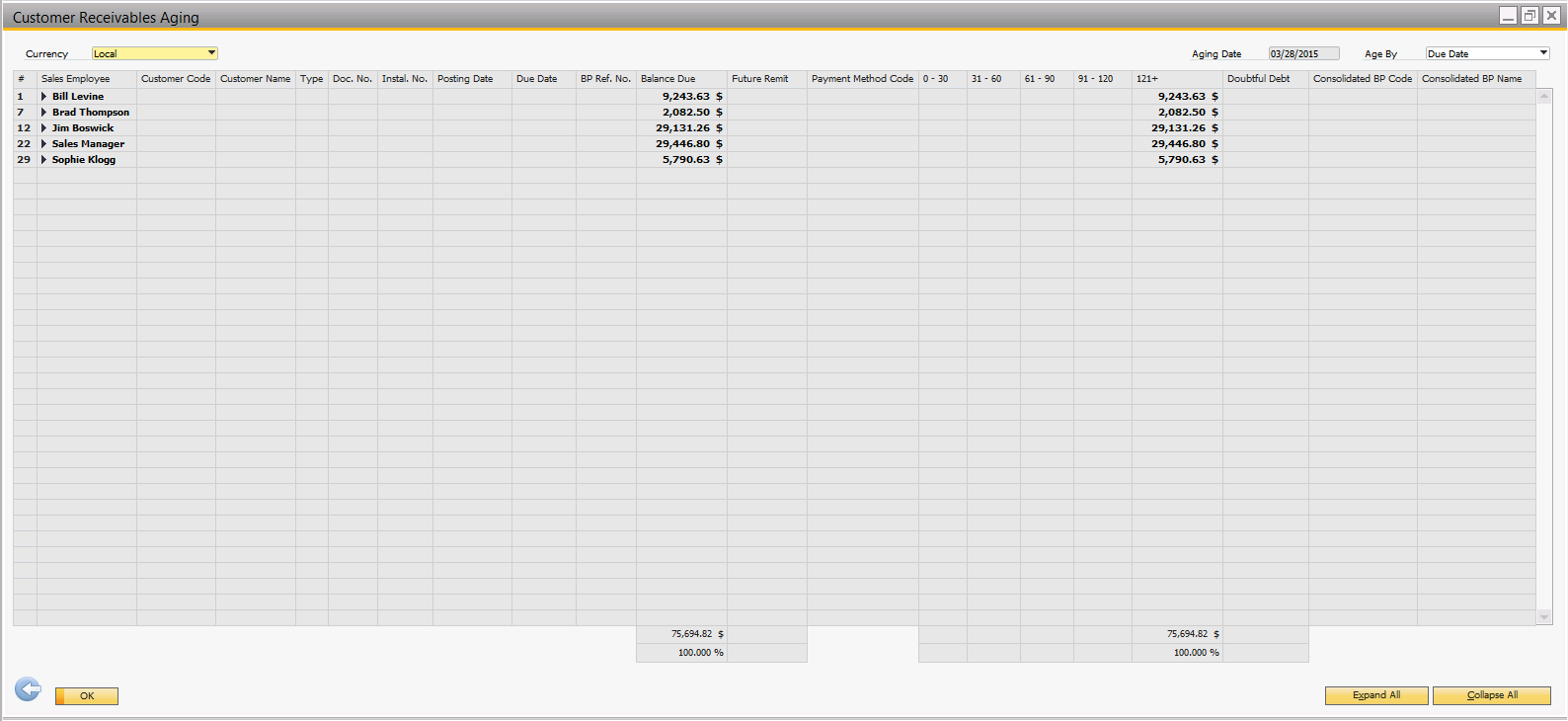
But the sales director also wants to add a Pie Chart to this summary report and receive it in a .PDF format.
Here is where Crystal Reports comes. We can easily create a report like this one:
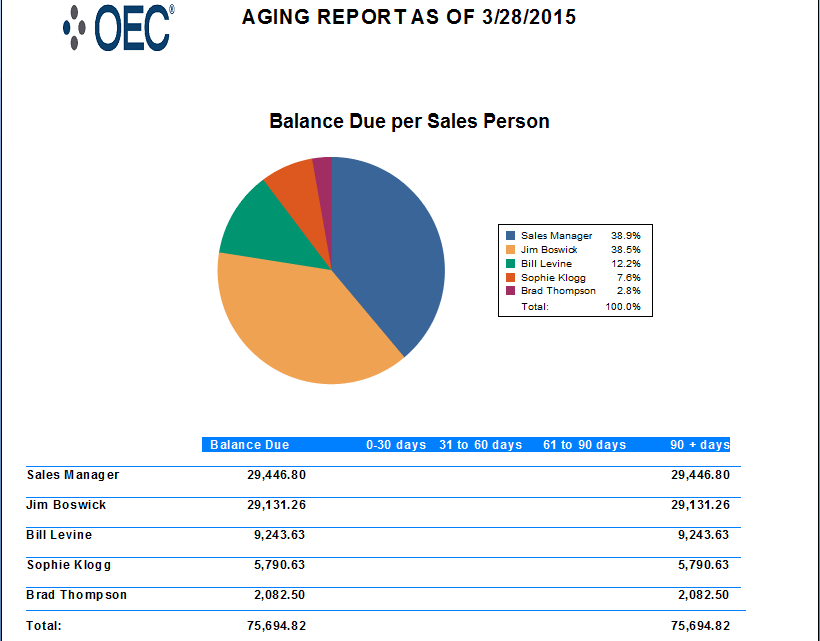
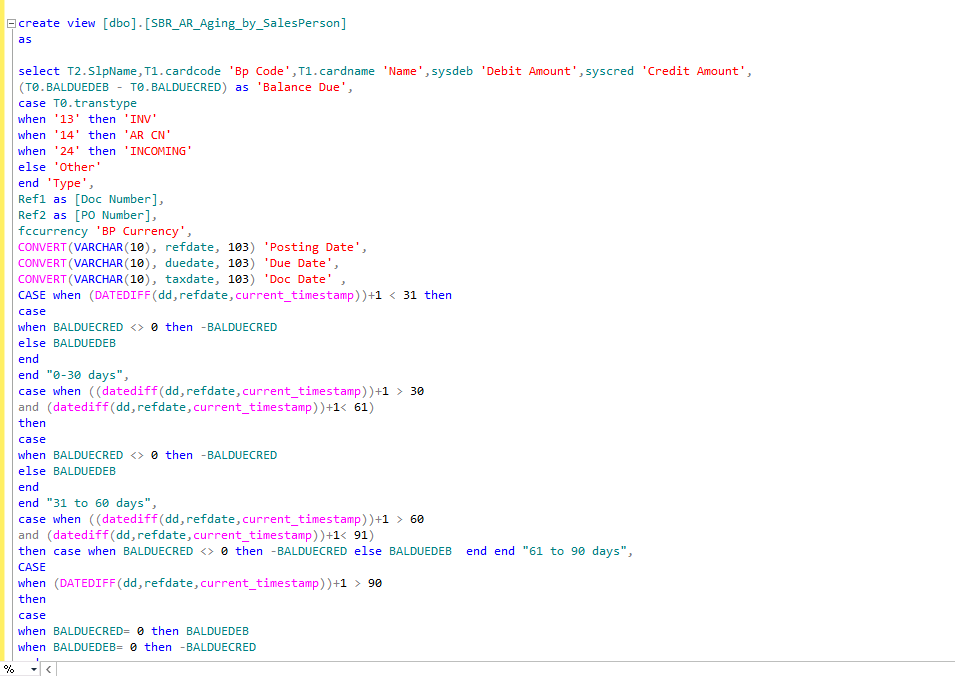
In this scenario, since he always wants the report running as of today’s date, we can just create a View with the Aging query. If a parameter was required (From and To dates) I would recommend to create a Stored Procedure.
We can get the Aging query from this post .
Based on the query we can just create a View:
Now we just need to add the View to Crystal Reports as you can see here .
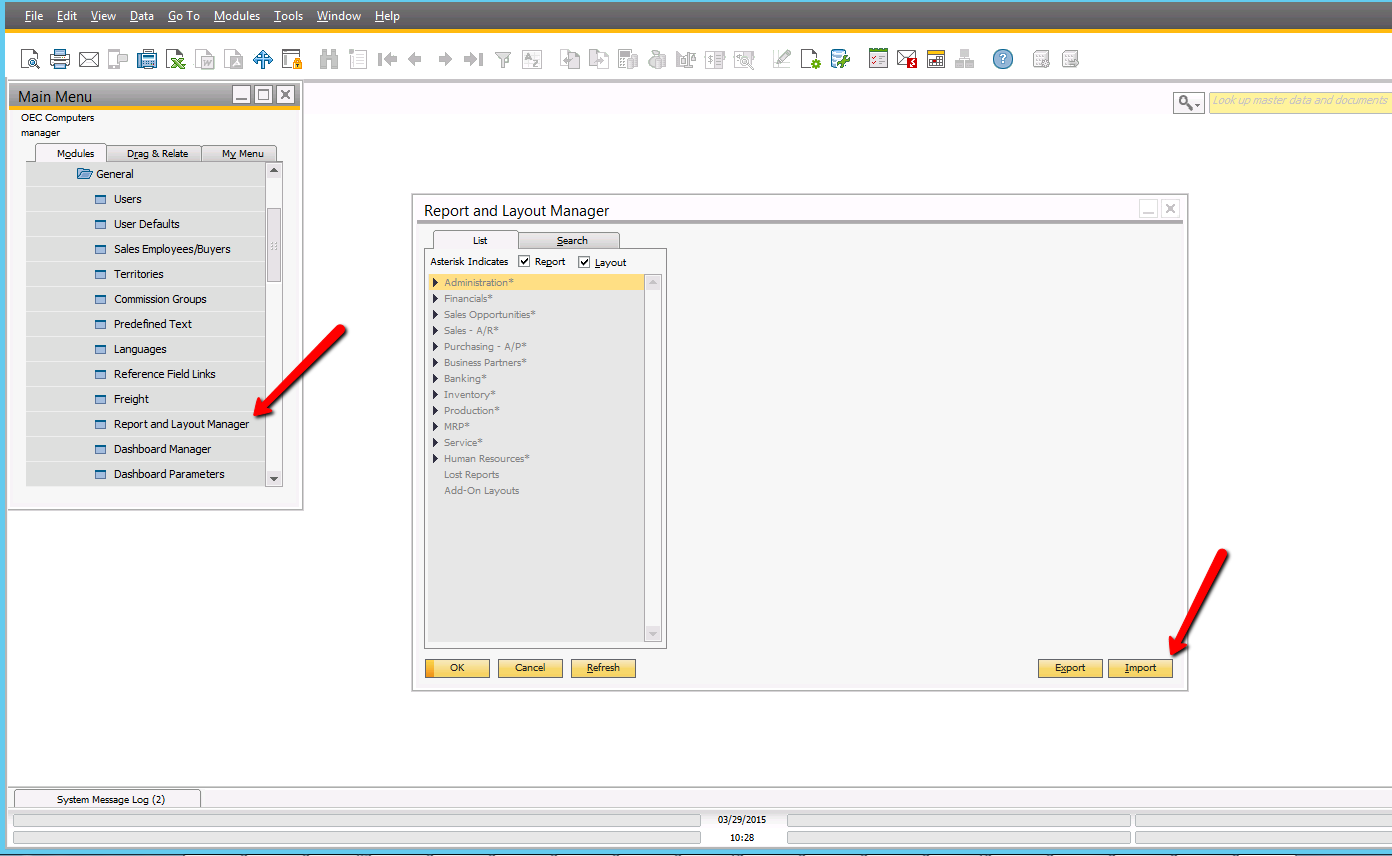
Once you have the .rpt file ready to go, you can import the file in SAP Business One or using the integration from CR:
Place any questions or comments here. Or if you prefer, just send me a message through my contact form here.
Stay tuned for the next posts!
 SAP B1 Tips